
Verified Kling 3.0 example
A verified Kling 3.0 output generated for cinematic motion and visual continuity.
Turn images and ideas into cinematic videos with native audio and multi-shot control. Use Kling 3.0 on ImageVids AI to create polished image-to-video clips, cinematic sequences, talking scenes, and social content.
Loading history...
Generated videos will appear here after you upload an image or write a text prompt.
The featured clip is a verified Kling 3.0 output. The remaining videos are general creative references for image-to-video briefs and are not presented as Kling-generated outputs.
A verified Kling 3.0 output generated for cinematic motion and visual continuity.

A general creative reference for product-focused briefs with controlled camera movement and polished commercial motion.
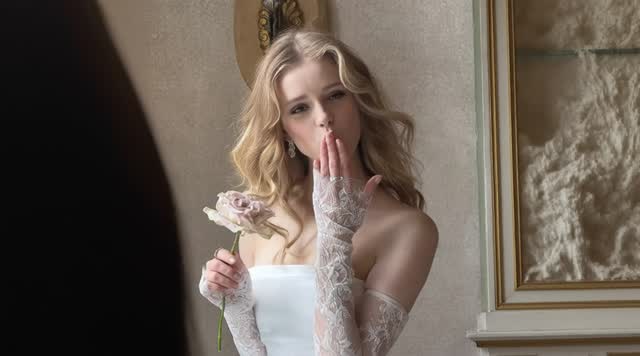
A general creative reference for portrait briefs focused on natural expression, subtle movement, and subject consistency.

A general creative reference for animated-character briefs with expressive movement and stylized visual direction.
Kling 3.0 is designed for cinematic generation where motion, sound, subject identity, and shot planning need to work together.
Best starting inputs
Images with motion prompts
Available clip control
5, 10, or 15 seconds
Audio workflow
Native audio model support
Creative strength
Cinematic motion and multi-shot ideas
Kling 3.0 guide
Kling 3.0 is the next-generation video model from Kling AI, developed by Kuaishou Technology. Its main appeal is a more complete production workflow: prompts can describe camera language, subject movement, dialogue, sound, and story beats instead of only asking for a short visual loop.
For image-to-video work, a strong reference image gives the model a visual anchor while the prompt explains what should move, how the camera should behave, and what atmosphere the shot should have. This is useful for product visuals, portraits, characters, ads, and cinematic storyboards.
This ImageVids AI page provides image-to-video access to the Kling 3.0 model through an independent browser workflow. The current integration requires an image and does not offer Kling text-to-video mode. It is not the official Kling AI website. Controls, credits, output limits, and availability shown in the generator can differ from Kling’s first-party product.
Model capabilities are summarized from Kling AI’s public Video 3.0 feature page and user guide. Always check the current official documentation and your ImageVids AI workspace before publishing production work.
The strongest Kling 3.0 results come from pairing a clear visual reference with specific direction for motion, sound, and continuity.
Start with a product photo, portrait, character design, or keyframe. Describe the subject action, camera movement, lighting change, and ending frame so the image becomes a directed shot rather than a random animation.
When audio is available for the selected workflow, describe dialogue, ambience, sound effects, or delivery. Keep speaker identity, language, tone, and timing explicit for more controllable talking videos.
Plan a short sequence with an establishing shot, subject action, camera change, and closing beat. Multi-shot prompts are most useful when every shot has a clear purpose and transition.
Use stable reference details and repeat the identity anchors that matter: wardrobe, hair, product shape, color palette, and environment. Avoid changing the subject description halfway through a prompt.
A repeatable workflow makes it easier to improve a Kling 3.0 generation without guessing which change helped.
Choose a sharp image with a clear subject, intentional composition, and enough visual detail for the model to preserve.
State the subject action first, then add camera movement, pacing, expression, light, and environmental motion.
Compose the source image in the aspect ratio you want to preserve, then choose an available duration. For a sequence, outline the shot order and the transition between beats.
If the result misses, adjust one part of the prompt at a time: action, camera, lighting, identity, or sound direction.
These Kling 3.0 prompt examples are starting points. Replace the subject, setting, and brand details, then keep the motion direction concrete.
Prompt formula
Subject + action + camera + environment + lighting + sound + ending beat
Use film language sparingly. A precise action and camera instruction usually helps more than a long list of adjectives.
For a portrait or character reference where identity and controlled camera movement matter.
A lone explorer walks through a misty pine forest at dawn, coat moving gently in the wind, slow dolly-in from a medium-wide shot to a close-up, soft backlight, realistic footsteps and distant birds, end on a steady determined look.
For ecommerce, launch, and social ads that need the product to remain recognizable.
Premium black skincare bottle on pale stone, camera makes a slow clockwise orbit as sunlight moves across the glass, subtle botanical shadows shift in the background, clean luxury commercial style, quiet room tone, end with the label facing camera.
For a short spokesperson or story scene. Add the exact line only when the selected workflow supports dialogue.
A friendly chef in a warm studio looks into camera and says, ‘The secret is simple.’ Start with a medium shot, cut to a close-up while the chef lifts the finished dish, natural hand gestures, warm kitchen ambience, accurate lip sync, end on the plated dish.
The best model depends on the inputs and control you need. Use this practical comparison as a starting point, then test the same brief in your generator.
| Model | Best for | Control style | Choose it when |
|---|---|---|---|
| Kling 3.0 | Cinematic image-to-video, native audio, characters, and multi-shot ideas | Visual reference plus motion, camera, sound, and shot direction | You want a cinematic result with strong subject continuity and audiovisual direction. |
| Seedance 2.0 | Multimodal projects using text, image, video, and audio references | Reference-driven multimodal composition | You need several different reference media types in one creative brief. |
| ImageVids AI workflow | Comparing models, testing prompts, and creating image-to-video drafts | One browser workspace with model and export settings | You want to try Kling 3.0 alongside other models before choosing a direction. |
Kling 3.0 is most useful when the output has a clear subject, a visible action, and a specific destination.
Turn a keyframe and a shot list into cinematic visual studies for pitches, story development, and previsualization.
Animate product photography with controlled camera moves, reflections, atmosphere, and a strong final frame for social campaigns.
Create short vertical clips, hooks, transitions, and visual experiments designed for fast iteration on social platforms.
Explore expressive character motion, dialogue ideas, lip-sync direction, and consistent visual identities.
Kling 3.0 is a video generation model from Kling AI. The current ImageVids AI integration uses it for image-to-video generation, with support for cinematic motion, native audio workflows, subject consistency, and multi-shot storytelling. Upload an image and add a motion prompt to try the model in the generator.
Yes. Kling 3.0 supports image-to-video workflows. Upload a clear image, describe the motion and camera direction, choose the available duration and resolution, and generate. Results depend on the source image, prompt, settings, and current model access.
ImageVids AI may provide new-user trial credits so you can test Kling 3.0 and other models. Free access is limited by the current account, credit, model, queue, and export rules. This page does not promise unlimited Kling AI free generation and is not the official Kling website.
Good prompts name the subject, action, camera movement, environment, lighting, sound or dialogue, and ending beat. For image-to-video, explain what must stay consistent and what should change. The examples on this page show practical Kling 3.0 prompt patterns.
Kling 3.0 is a strong fit for cinematic image-to-video, native audio, subject continuity, and shot direction. Seedance 2.0 is a strong fit when you want to combine text, image, video, and audio references in one multimodal brief. Test both with the same concept when the choice is not obvious.
The public Kling 3.0 materials describe output up to 15 seconds, while the ImageVids AI Kling 3.0 workflow currently exposes 5, 10, and 15 second choices. Available settings and credits can change, so check the generator before submitting.
Commercial use depends on your ImageVids AI plan, the model terms, the rights to your inputs, and applicable laws. Review the current pricing and terms before using an output in advertising, client work, or resale.
Turn anime images and original character art into short videos for story scenes, manga moments, and social posts.
Explore this toolCreate videos from text prompts or uploaded images, compare models, and control duration, ratio, resolution, and audio.
Explore this toolConvert a photo, design, or AI-generated image into a dynamic video directly in your browser.
Explore this toolDirector-style multimodal control using image, video, and audio references for complex creative scenes.
Explore this toolTest image-to-video generation with free trial credits before choosing a paid plan or adding more capacity.
Explore this toolStart with one strong image and one specific motion idea. Generate a draft, refine the prompt, and compare the result with Seedance 2.0 or another model in the same workspace.
Kling AI and Kling 3.0 are trademarks of their respective owners. ImageVids AI is an independent service and is not affiliated with Kling AI.
Start with the result you want to create. Each model offers a different balance of speed, visual fidelity, creative control, reference support, and audio generation.
Director-style multimodal control using image, video, and audio references for complex creative scenes.
Use this modelFast, imaginative video generation for bold concepts, realistic movement, and rapid visual experimentation.
Use this modelExplore MindVideo AI text-to-video and image animation, with creative prompts and practical workflows for your next clip.
Use this modelExplore A2E’s photo animation and talking-avatar workflows, with an ImageVids AI workspace for image and text videos.
Use this model